Personal Finance Tracking Spreadsheet
A simple, honest budget and net-worth tracker for Canadians. You type in what you spend — it never connects to your bank — and it adds up your month, flags the categories you're about to blow, and keeps an eye on your goals, debts and net worth. It's built in Canadian dollars and works the same whether you open it in Microsoft Excel or Google Sheets.
Get the free spreadsheet. Pop in your email and the download starts right away. I'll also send a note when a new tool or backtest goes live — unsubscribe anytime, one click.
Works in both — open it in Microsoft Excel (2019 or newer) or upload it to Google Sheets, and the formulas, dropdowns, colour alerts and charts behave the same in either one.
What's in the file — nine tabs: a dashboard, a manual transactions log, a flexible budget with green/amber/red alerts, net worth, savings goals, a debt-payoff planner (snowball vs. avalanche), sinking funds for irregular bills, auto-updating charts, and an editable setup sheet.
Why tracking your spending actually works
Most money advice skips the boring first step and jumps straight to cutting back. But you can't really change a spending habit you've never measured. Tracking isn't about guilt or cutting out every coffee — it's about seeing the shape of your money clearly enough to make your own calls. This spreadsheet explores one straightforward way to do that.
Start by watching, not cutting
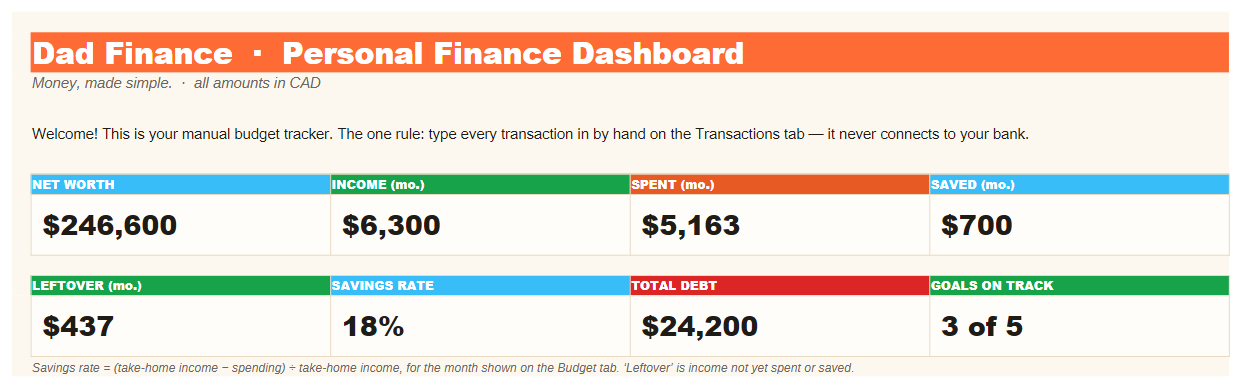
For the first month, just record what already happens. Don't change anything. Most people are surprised by one or two categories — and that surprise, not a strict rule, is what usually nudges a habit. The dashboard turns a month of typed-in rows into a few honest numbers: what came in, what went out, and what was left.
Two kinds of spending: fixed and flexible
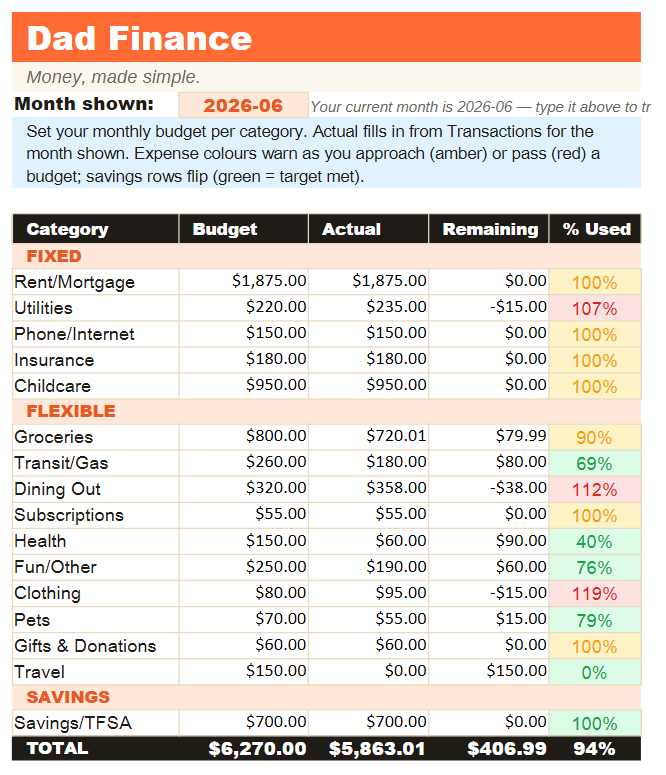
The budget tab splits your categories into fixed (rent or mortgage, insurance, phone and internet, childcare) and flexible (groceries, dining out, fun, clothing). Fixed costs barely move month to month — there's not much a budget can do about them in the short run. Flexible spending is where a budget actually bites, so that's where the colour alerts are most useful: a category turns amber as you approach its limit and red once you pass it.
Pay yourself first
A budget that treats saving as "whatever's left over" usually leaves nothing over. It helps to treat savings like a bill you owe yourself — a line in the budget with its own target. In this sheet the savings rows flip the colours on purpose: hitting or beating your savings target shows green, because that's the good direction.
Plan for the bills that don't come monthly
The single most common reason a budget blows up is a cost that wasn't really a surprise — property tax, new tires, an insurance renewal, the holidays. The fix is a sinking fund: take the yearly cost, divide by twelve, and set that aside every month so the bill is already paid for when it lands. There's a whole tab for this, with the monthly set-aside worked out for you.
Know your number: net worth and a cash cushion
Net worth is just what you own minus what you owe, and the trend matters more than any single month's figure — that's why there's a snapshot you update over time.
A cash cushion is what keeps a bad month from turning into a crisis. A common first step is a small starter fund — say a month's expenses — kept in accessible cash or a high-interest savings account, not invested, so it's actually there when you need it. From there, many people put spare dollars toward high-interest debt (a credit card at around 20% is hard to beat) and toward capturing any employer RRSP or pension match — that's free money — before topping the cushion up to a fuller three to six months of essential spending. The spreadsheet works that three-to-six-month range out from your own budget; where you land in it depends on things like how steady your income is, whether you have dependents, and whether it's one income or two.
That's the whole idea: a tracker, not a guru. It shows you what already happened with your money so the decisions stay yours.
How to use the spreadsheet
Setting it up takes about ten minutes. After that it's a couple of minutes a week.
-
Download and open it
In Excel, just open the file. For Google Sheets: go to Google Drive → New → File upload and pick the
.xlsx, then right-click it → Open with → Google Sheets. (If it opens in preview, use File → Save as Google Sheets.) Every formula, dropdown, colour and chart carries over. -
Read the “Start Here” tab
It's your dashboard — income, spending, savings rate, net worth, total debt and goals on track, all in one view. Everything there fills in automatically from the other tabs, so you don't edit it directly.
-
Make it yours on the “Setup” tab
Edit the category and account lists, and the currency, so they match your life. These lists feed the dropdowns everywhere else, so it's worth a few minutes up front.
-
Enter transactions by hand
On the Transactions tab, add each income and expense. Pick the Account, Type and Category from the dropdowns — the Month fills in for you. Use Type = Transfer for things like paying your credit card or moving money to savings, so they aren't counted as spending twice. (The sheet starts with sample rows — just overwrite them.)
-
Set your budget
On the Budget tab, type a monthly amount beside each category. As your spending lands, the “% Used” cell turns green (under 80%), amber (80–100%) or red (over). Savings rows are flipped — there, green means you hit your target.
-
Fill in the rest as you go
Net Worth (what you own and owe, plus a monthly snapshot), Goals (a target and a monthly contribution give you a forecast finish date and the top-up needed to hit a deadline), Debt Payoff (estimates months-to-payoff and compares the snowball and avalanche methods), and Sinking Funds for those irregular bills.
-
Each month, just add rows
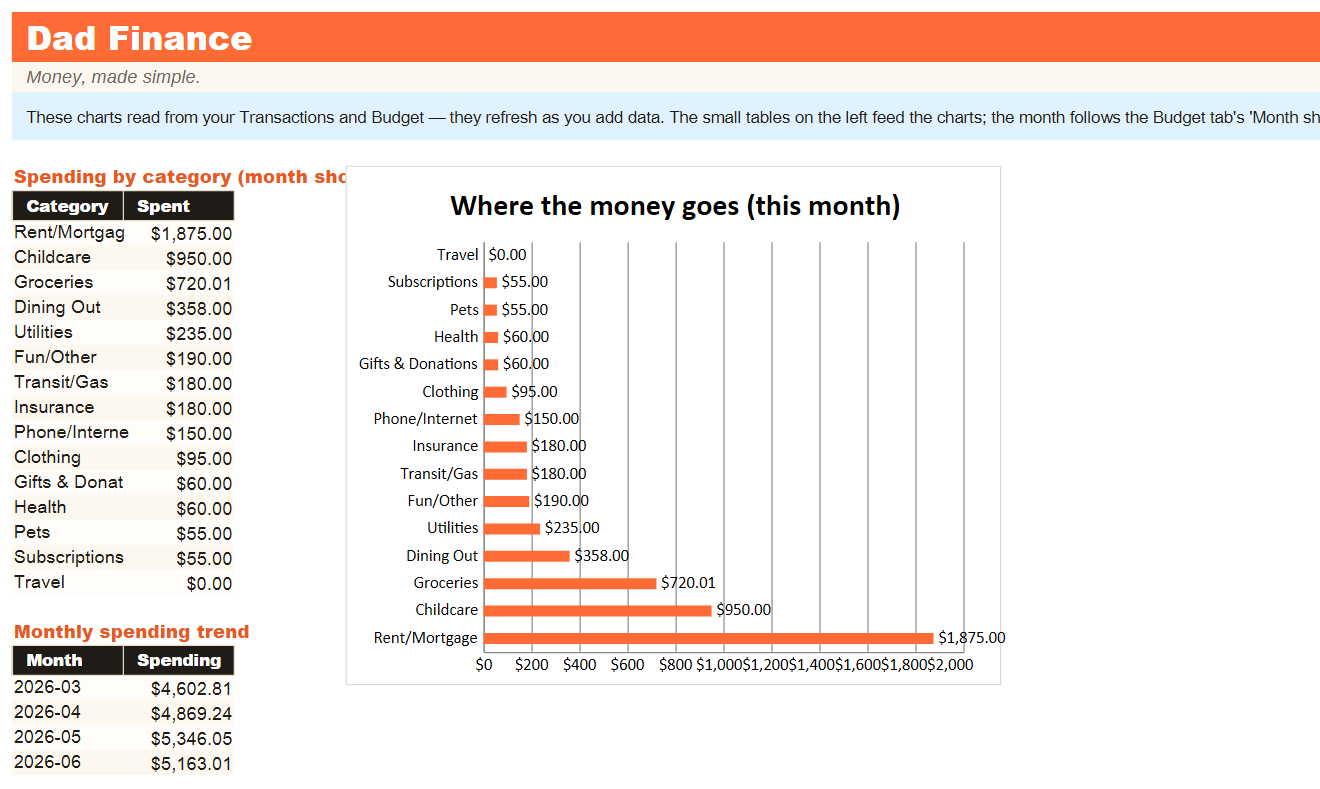
Paste or type your new month's transactions at the bottom of the list. The budget, charts, reports and dashboard recalculate on their own — there's nothing to refresh.
yyyy-mm (e.g. 2026-06) to look back at a past month.
What's inside
For education and personal budgeting only — this spreadsheet is a tracking tool, not financial advice. The sample numbers in the file are fictional; overwrite them with your own. It runs entirely on your device or in your own Google account and never connects to a bank.